# Facebook Login
To start working with facebook login, you must first create a facebook app in your facebook developer console.
To create a facebook app, click on this link:
* On the create app page, select **Consumer** as the type of the app and click on **Next**

* On the details page fill in your **App Display name** and **support email.** Then click on **Create App**

* Now you have successfully created a facebook app.
## Android Setup
Go to [Facebook Login for Android - Quickstart](https://developers.facebook.com/docs/facebook-login/android/?locale=en)
### Select an App or Create a New App
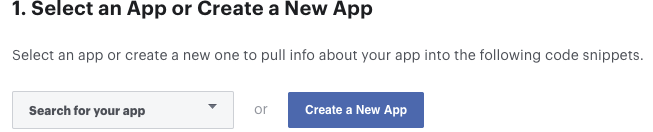
1. Skip the step 2 (Download the Facebook App)
2. Skip the step 3 (Integrate the Facebook SDK)
###
### Edit Your Resources and Manifest
1. Edit **Your Resources and Manifest** add this config in your android project
* Open your `/android/app/src/main/res/values/strings.xml` file, or create one if it doesn't exists.
* Replace **`YOUR APP NAME`** with your actual app name
* Add the following (replace `{your-app-id}` with your facebook app Id):
```xml
YOUR APP NAME
{your-app-id}
fb{your-app-id}
```
### Associate Your Package Name and Default Class with Your App
In this step make sure your enter your application id/package id. Then the enter your package/application id in the second input field with **.MainActivity.** As your can see below, our application id is **online.edentech.fuodz** and the second input field **online.edentech.fuodz.MainActivity.**
Then click on **Save**

### Provide the Development and Release Key Hashes for Your App

To find info to how to generate you key hash go to
> Note: if your application uses [Google Play App Signing](https://support.google.com/googleplay/android-developer/answer/9842756?visit_id=637406280862877202-1623101210\&rd=1) then you should get certificate SHA-1 fingerprint from Google Play Console and convert it to base64
> You should add key hashes for every build variants like release, debug, CI/CD, etc.
**Note:** Skip/Ignore the rest steps on the page
## iOS Setup
* Go to [**Facebook Login for iOS - Quickstart** ](https://developers.facebook.com/docs/facebook-login/ios)and select or create your app.

* **Skip** the step 2 **(Set up Your Development Environment)**.
* In the step 3 (Register and Configure Your App with Facebook) you need add your `Bundle Identifier` This is the same as your application/package id. Then click on **Save.**

* You can find your `Bundle Identifier` in Xcode (Runner - Target Runner - General)

### Setup iOS Info.plist
In the Step 4 you need configure your `Info.plist` file inside `ios/Runner/Info.plist`
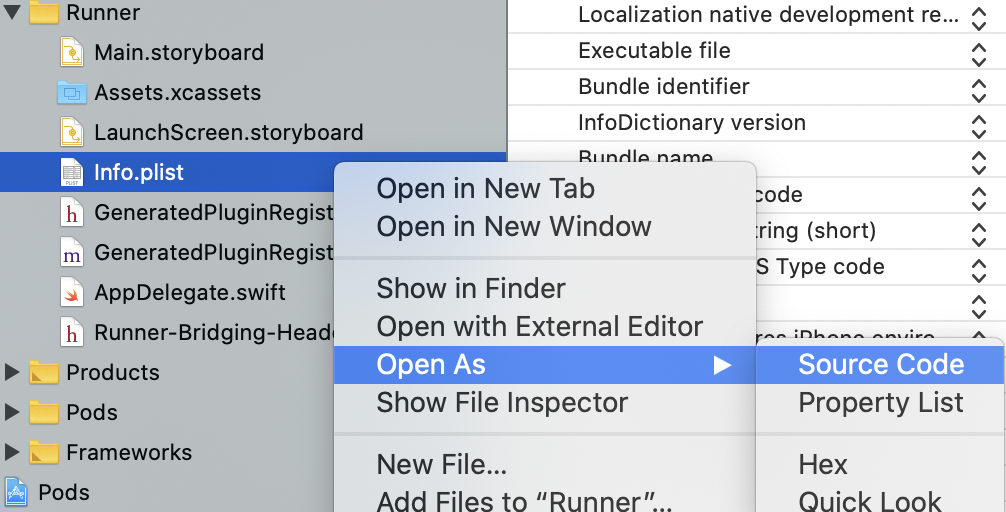
From Xcode you can open your **`Info.plist`** as **`Source Code`** .
Under the **CFBundleURLSchemes** section replace `{your-app-id}` with your facebook app Id
Now at the very bottom of the Info.plist file change the following with values from your facebook app.
1. APP-ID - same as facebbok app id
2. CLIENT-TOKEN - This value can be found under **Settings** > **Advanced** > **Client Token** in your Facebbok App Dashboard.
3. APP-NAME - Use your app name
## Firebase Setup
**Note:** You must have completed setup of facebook login for android/ios setup to be able to setup facebook login on firebase console.
You need to enable **Facebook** sign-in on your firebase project. Login to your firebase console and select your project.
1. Then select **Authentication.**
2. On the authentication page select **Sign-in methods.**
3. Then select **Add New provider.**
4. After select **Facebook** in the list of auth providers.
5. Enter your Facebook App id and secret
6. Click the enable switch to enable it
7. Then save


